Examples
Omi-derived 3D Print Edition
Works with Nexting · DIY case
Nexting Devices SDK · Case
Omi-derived 3D Print Edition
Build Nexting's 3D-printed adaptation of the Omi open-hardware lineage, flash its firmware, and connect it to the official Nexting App.
Case study: build the Omi-derived 3D Print Edition
This is Nexting's 3D-printed adaptation of the Omi open-hardware lineage. Nexting redesigned the enclosure geometry, button feel, and clip structure, and wrote firmware for this device. It is not official Omi hardware and does not use Omi firmware.
What makes up this Omi adaptation
| Part | Description |
|---|---|
| Omi open-source project | Provides the enclosure structure and hardware design reference. |
| Nexting 3D Print Edition | Nexting's modified enclosure, wiring, XIAO firmware, and assembly files. |
| Nexting Devices SDK | The encrypted BLE/GATT Profiles used between a device and Host. |
Download the files
These links are the files needed to build this Omi adaptation. Download the file you need from the public repository.
| You need | Public path | Use | Open |
|---|---|---|---|
| 3D-printed enclosure | The current default three-part enclosure set. | Open enclosure folder | |
| Prebuilt firmware | firmware/pinclaw_zephyr/pinclaw_v2.2.4.uf2 | Only for the matching Seeed XIAO nRF52840 Sense path. | Download UF2 |
| Wiring and schematic | docs/SCH_pinclaw_v1.0_diy.pdf | Check soldering, power, and pins; do not wire from photos alone. | Open schematic |
| Complete instructions | hardware-opensource/README.md | BOM, assembly order, firmware, and license entry point. | Open GitHub guide |
Connect to the Nexting App
“Download the files” is the material entry point; this section explains how the finished device enters the Nexting App. The device does not connect directly to Claude Code, Codex, Grok, Cursor, or a cloud Agent. The Nexting App is the trusted Host that manages BLE, device identity, and Agent sessions.
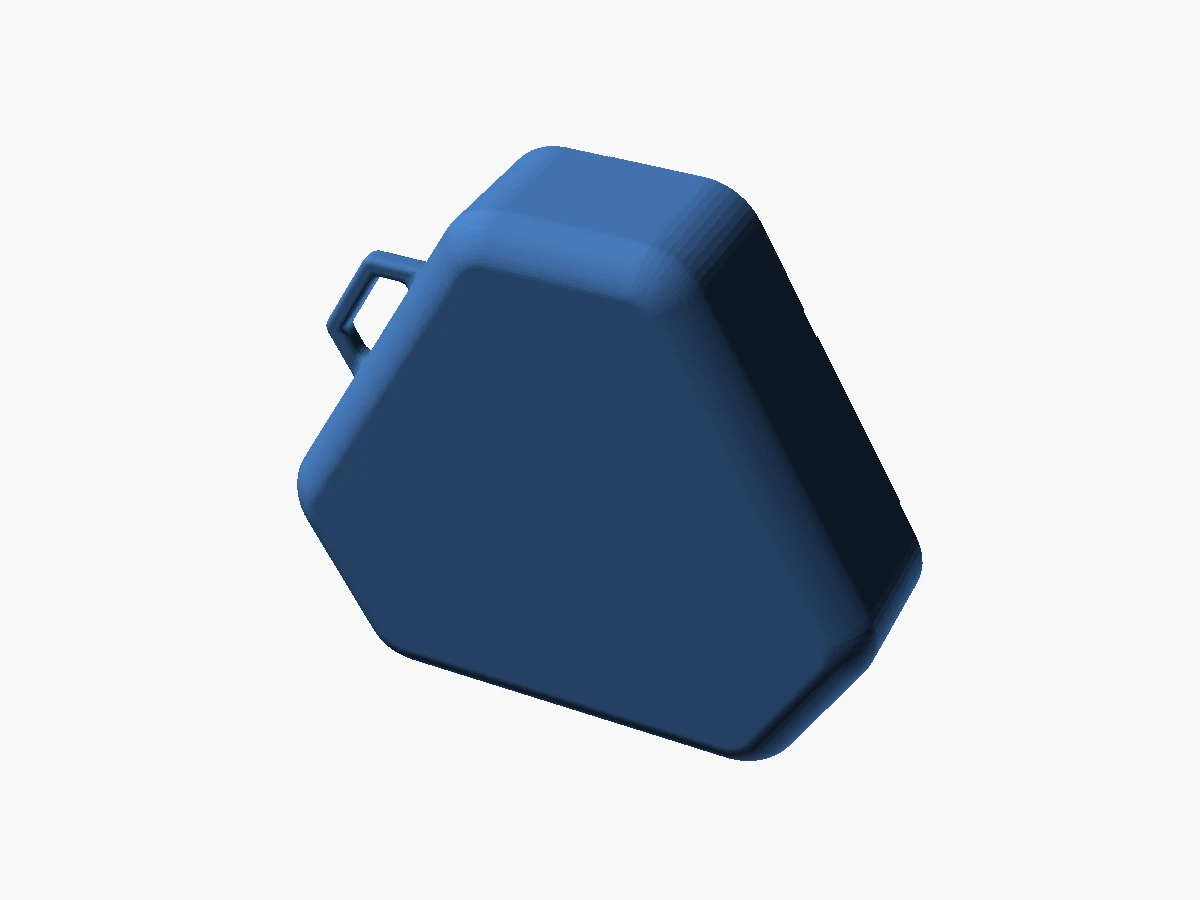
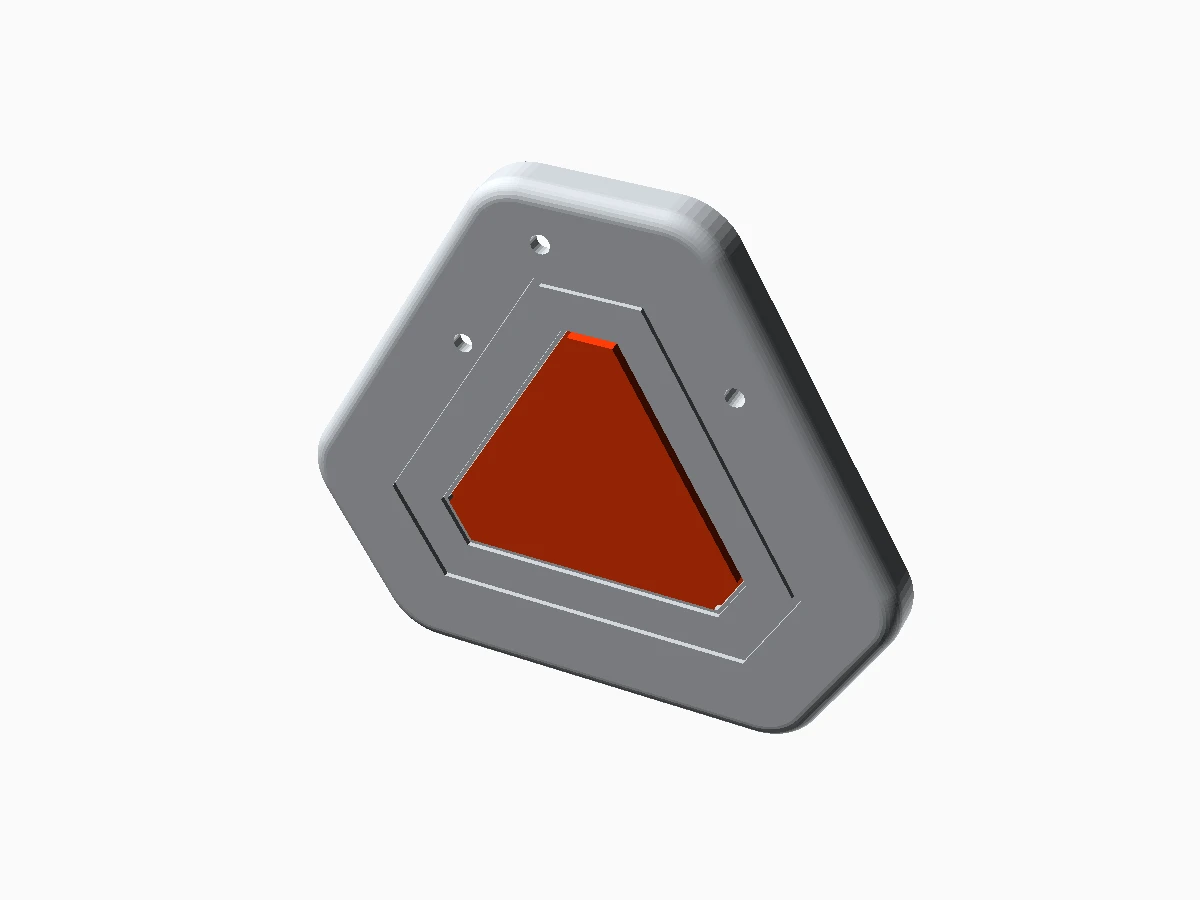
These two images are rendered directly from the current shipping files: the first is the base.stl enclosure, and the second combines cover.stl and button.stl. Each image maps to the public download path above.
Finish the hardware and firmware
Assemble the Omi adaptation from the public files above and flash pinclaw_v2.2.4.uf2. Test the button, recording, and playback on the bare board first.Sign in and scan in the App
Open the Nexting App, allow Bluetooth access, and scan for nearby devices. Select the Omi adaptation that matches the advertised name.Review and authorize
The App reads the model, firmware, and capabilities. Confirm the board is a Seeed XIAO nRF52840 Sense, then complete pairing.Enter the Agent from the App
After pairing, PTT audio enters the App over BLE and the App forwards it to the cloud Agent. Recording, playback, and the session stay managed in the App.
Assembly and first boot
Assemble in this order: bare board → audio → enclosure → App. Complete each step before moving to the next one.
Connect only the MCU and USB
Power the XIAO nRF52840 Sense and confirm that it enters a UF2 volume, enumerates over serial, and shows a board LED response. Do not attach the speaker or battery yet.Add PTT and the amplifier
Wire D4, A1/A2/A3 I2S, D6 amplifier enable, 3V3, and GND from the schematic. Power the MAX98357A from 3V3; do not infer the 5V pad from a product photo.Test recording and playback bare
Verify hold-to-record, release-to-stop, tap-to-play, and LED startup, connection, and recording states before installing the enclosure.Install the case and button
Dry-fit the printed parts, then secure the board, speaker, and battery. The button must fully release; case pressure must not hold D4 low.Finish with App pairing
Confirm that the product firmware advertises and establishes audio, then pair through the Nexting App.
Firmware structure
The firmware uses Zephyr. This source map explains each module so you can modify and build it.
| Source location | Responsibility | Verification after a change |
|---|---|---|
| src/button.c / button.h | D4 press, release, debounce, and tap/hold classification | Record, playback, repeated input, and bounce tests |
| src/transport.c / transport.h | BLE audio, commands, and heartbeat transport | Service UUIDs, notify order, sequence numbers, reconnect |
| src/codec.c, mic.c, speaker.c | PDM capture, Opus encoding, and I2S playback | Recording duration, START/DATA/END packets, audible playback |
| src/device_id.c / storage.c | Persistent device ID and NVS storage | Stable BLE name and ID after reboot |
| overlay/*.overlay | Board, amplifier, and I2S pin description | Wiring and audio output on the actual board |
| prj.conf / CMakeLists.txt | Zephyr feature flags and build entry point | Clean build without stale build-directory state |
# Run from the repository root
export ZEPHYR_TOOLCHAIN_VARIANT=gnuarmemb
export GNUARMEMB_TOOLCHAIN_PATH="$HOME/Library/Arduino15/packages/Seeeduino/tools/arm-none-eabi-gcc/9-2019q4"
export ZEPHYR_BASE="$HOME/ncs/zephyr"

cd hardware-opensource/firmware/pinclaw_zephyr
west build -b xiao_ble/nrf52840/sense . \
  -DDTC_OVERLAY_FILE="$PWD/overlay/xiao_ble_sense_devkitv2-adafruit.overlay" \
  --pristine

# Artifact: build/zephyr/zephyr.uf2
Use the prebuilt UF2 for a quick reproduction and a source build for development. Build with a board and overlay that match XIAO nRF52840 Sense.
Connect to the Nexting SDK
To connect this hardware to the Nexting SDK, add a message adapter and tests. Keep the voice feature, then expose PTT and one status light through the public Profiles.
| Adapter task | Device work | Host work | Acceptance evidence |
|---|---|---|---|
| Device identity | Declare model, hardware, firmware, capabilities, and a stable ID | Reject missing fields, incompatible versions, or identity changes | Device Info snapshot before and after reboot |
| PTT intent | Translate press/release into bounded voice/1 events | Validate session, freshness, and duplicates before invoking the Agent | Hold, release, replay, and disconnect vectors |
| Status light | Render only bounded Host state; do not infer Agent state | Send full-replacement status/1 and clear it on disconnect | Connected, recording, complete, error, and clear vectors |
| Battery | Report the agreed battery service or Device Info value | Treat it as a hint, never as authorization | Charging, discharging, low, and absent-battery tests |
| Update and rollback | Keep a recoverable boot path and version marker | Deliver firmware only to matching hardware | A wrong-target drill that preserves recovery |
Troubleshooting
| Symptom | Check | Fix |
|---|---|---|
| No UF2 volume appears | Use a data cable, double-tap Reset, and confirm XIAO Sense | Replace the cable or re-enter the bootloader |
| UF2 appears but the board will not boot | Check the board, bootloader, and overlay match | Rebuild or download the matching UF2 |
| LED works but there is no sound | Check 3V3/GND, A1/A2/A3, D6, amplifier SD, and speaker polarity | Recheck the wiring against the schematic |
| Recording works but App playback fails | Check START/DATA/END order, sequence numbers, and BLE connection | Fix the audio path before the App path |
| Product pairs but has no SDK controls | Check Profile declarations and Host enrollment | Complete the Profile adapter and Device Info |
| Input is duplicated | Check debounce, event IDs, Host deduplication, and disconnect clearing | Implement idempotent handling |
When reporting a problem, include the MCU marking, firmware filename, overlay, operating system, USB enumeration result, LED behavior, and reproduction steps.
Two ways to use it
Nexting App ↔ cloud Agent
encrypted BLE GATT ↔ Nexting Host ↔ Agent
The voice product uses a BLE audio path; an SDK device uses public Profiles. Firmware or a Host adapter translates button, LED, and battery state into public messages, then the trusted Host connects the device to an Agent.
Flash the firmware
Confirm the MCU first
This UF2 is for the Seeed XIAO nRF52840 Sense. Confirm the board marking and model first.Keep a recoverable baseline
Confirm that the device boots, records, and plays back, and keep the current firmware file. MultiPad STM32 firmware and other UF2 files do not apply to this XIAO.Double-tap Reset for the UF2 volume
After a double-tap on the XIAO Reset button, the computer should show a removable disk. Continue only when the volume appears for the expected board.Drop in pinclaw_v2.2.4.uf2
Download the matching file from firmware/pinclaw_zephyr and drag it onto the UF2 volume. If it does not appear, troubleshoot USB and Reset first.Verify the product path
Reconnect power and USB, confirm button, audio, LED, and the Nexting App pairing flow, then start SDK Profile work.
Map hardware to the SDK
| Hardware capability | Shipping product path | SDK target | Status |
|---|---|---|---|
| Hold PTT | Start/stop voice capture | voice/1 hold-to-talk intent | Needs Profile adapter and vectors |
| LED | Local recording/connection feedback | Minimal status/1 state | Declare the light semantics |
| Battery | Product App battery display | Device Info / battery service | Verify against real advertisement |
| No screen | No text output | Do not declare text/1; use Host or LED state | A useful design constraint |
| BLE | Product audio path | Encrypted GATT Profile path | Verify the protocol layer by layer |
Start with one PTT event and one status light. Cover hold, release, disconnect, reconnect, and expiry before adding audio, configuration, usage, or custom light effects.
Completion checklist
| Stage | Verification | Pass condition |
|---|---|---|
| 1. Files | Fetch the enclosure, schematic, and v2.2.4 UF2 from the public repo | The linked files are available |
| 2. Product | Complete recording, playback, LED, and pairing on the original path | It works without the SDK adapter |
| 3. Link | Inspect BLE services and confirm identity, direction, and disconnect behavior | Audio characteristics are not mislabeled as SDK Profiles |
| 4. Profile | Verify one PTT → voice/1 and one state → status/1 | Messages, replay, expiry, and clearing have vectors |
| 5. Docs | Record the model, firmware, pins, rollback, and limits | Another developer can reproduce the build |
Other examples
| Case | Why it matters | First deliverable | Status |
|---|---|---|---|
| XIAO reference controller | Fastest SDK proof without enclosure or complex audio | approval/1 + status/1 | Ready as the next sample |
| BLE Ring | Small bandwidth and rotation/click map naturally to physical intent | rotary/1 + keys/1 | Needs real hardware specs |
| MultiPad | Keys, rotary controls, and displays suit extensible mapping | keys/1 + rotary/1 + status/1 | Bridge connection planned |